Online English Class Recording | How to Choose a Service and Record It Yourself
Published: ·Updated: ·11 min read
 Sho
ShoIf you have started looking for a way to record your online English lessons, there is one thing worth checking first. The service you already pay for may be able to keep the audio for you. Preply and italki both do — not automatically, but with a switch you turn on once.
This article starts with how to choose a service if the recording matters to you. Then: how to find out what your current service does, how to record it yourself with what is already on your computer or phone, whether you are allowed to, and how to pull one thing to fix out of a twenty-five minute lesson. That last part is where the time is saved.
The short version
- Preply and italki both keep your lesson audio, but neither does it on its own. You switch it on.
- Preply writes a transcript and turns it into feedback on your vocabulary, grammar and how much you spoke.
- italki needs your teacher to agree as well. Without that, nothing is recorded.
- What is kept is audio. If you want the screen and the materials too, you record it yourself.
- You do not need extra software. Windows, Mac, iPhone and Android all have screen recording built in.
- Recording is the easy part. Listening back is where people stop, so do not replay the whole lesson.
Choosing a service when the recording matters (three things to look at)
If you are still deciding, or thinking of moving because nothing is kept where you are now, there are only three things to look at on the recording side. Price and teacher quality are a separate question.
- Is it automatic, or do you have to switch it on? If you switch it on, the lessons you forget are gone.
- Is it audio only, or is the video kept as well? Most services keep audio only.
- How long does it stay? Miss this one and the lesson you wanted is already deleted when you go back for it.
If you can confirm those three on the official pages, the recording side of the comparison is finished. These are the two we have checked against the official documentation.
| Service | How the recording is kept | Transcript | How long it stays |
|---|---|---|---|
| Preply | You turn on Lesson Insights. Audio only — the video is not recorded | Yes. An AI writes up vocabulary, grammar and how long you spoke | For as long as you keep using Preply. You can download or delete it whenever you want |
| italki | You and your teacher both have to agree before anything is recorded | Yes. Notes and a lesson summary are generated from it | The audio sits in italki private storage. The official pages do not give a period |
Source: Preply Help Center / italki Help
"Not stated" is not the same as "does not exist". Some services simply have not written it down. If it matters to you, ask them.
Both of these are used in most countries, so the answer travels with you if you move service. Local services are a different matter, and the section below is about how to check yours.
What your current service does (the switch is usually already there)
From here on, this is what the official pages say, quoted. A "recording available" tag on a comparison site does not tell you what is kept, for how long, or how to play it back — and that is exactly where people get stuck once they have signed up.
Preply — switch on Lesson Insights and the audio is transcribed for you
Preply is explicit that this does not happen unless you ask for it.
Lesson Insights are entirely optional for you and your tutor and you will be asked whether you want to enable them or not.
Source: Preply Help Center — Lesson Insights (retrieved 2026-09-11)
That is the part people miss. Nothing is recorded until you select it, and you can turn it off again at any time from your settings. The lessons you took before you switched it on are not there.
Once it is on, the audio is not just stored. It is transcribed and read by an AI.
We generate these insights by transcribing lesson audio, which is then analyzed by AI.
Source: Preply Help Center — Lesson Insights (retrieved 2026-09-11)
So on Preply the transcript is not a separate product you have to buy. It arrives with the lesson, and you can download the audio itself whenever you want.
- The video is not recorded. What you get back is audio.
- You can reach your lesson audio for as long as you keep using Preply.
- You can delete the audio, the transcript and the feedback from any single lesson, at any time.
italki — you can record it yourself, but your teacher has to agree
italki is one of the few services that documents how to record a lesson, step by step.
For the recording to be made, BOTH the teacher AND the student must agree to allow recording.
Source: italki Help — How do I record my lesson in the italki Classroom? (retrieved 2026-09-11)
This is a condition, not a formality. If your teacher does not agree, the button does nothing. It is also limited to Chrome, Edge and Firefox, and if one of you is on a different browser then that person cannot record.
The video recording is not saved or uploaded to any online server. The recording is only saved on your computer. italki does not have access to your video and does not have a copy of the video.
Source: italki Help — How do I record my lesson in the italki Classroom? (retrieved 2026-09-11)
There are two separate things here, and mixing them up leads to disappointment. The video you record yourself lands on your own computer and italki never sees it. The audio recording is a different switch, and that one is what the transcript and the lesson summary are built from.
| What you switch on | Where the file ends up |
|---|---|
| Record Lesson (video) | Your own computer, as a WEBM file. italki keeps no copy of it |
| Audio recording (permission) | italki private storage, where the transcript and the lesson summary are made |
| Neither of them | Nothing at all. There is no lesson to go back to |
Source: italki Help
If you want the screen and the teacher notes as well, record the video yourself and keep the audio switch on too. If you only want to hear yourself again, the audio switch is enough and takes far less space.
How to check the service you are actually using
Open the official help pages and search for "record". That is faster and more reliable than any comparison site. You are looking for three things: whether it is automatic or a switch, whether audio or video is kept, and how long it stays. Skip the third and you will find the lesson gone when you come back for it.
One warning. Round-up articles go stale. Pages written years ago still rank, so a feature that has since been added is described as missing. Check the official pages before you conclude that your service cannot do it.
How to record it yourself (no extra software needed)
One thing first. Whether you are allowed to record is not the same everywhere. Read "Are you allowed to record it" further down before you use the steps in this section.
If the terms are fine and nothing is kept where you are, or you want the screen and the materials as well, you record it yourself. You do not need to install anything. Windows, Mac, iPhone and Android all have screen recording built in.
- Windows — the built-in Xbox Game Bar. Press the Windows key and G together.
- Mac — the built-in screen recording. Press Shift, Command and 5 together.
- iPhone and iPad — Screen Recording in Control Centre. Add it from Settings first.
- Android — Screen record in the quick settings panel. The name varies slightly by phone.
There is one place almost everyone slips. Your own voice is missing. Screen recording usually captures what is playing on the screen and leaves the microphone off. A recording with the teacher in it and none of you is close to useless for reviewing. Turn the microphone on before you start. On iPhone, press and hold the screen recording button and the microphone toggle appears.
The other one is storage. Twenty-five minutes of screen recording is tens of times larger than the same length of audio. If you take a lesson every day, your phone fills up within a week — so delete the ones you are not keeping the same day, or record audio only from the start.
And for most people the video is not needed. What you use when you review is the moment you got stuck and the way your teacher said it, and both of those are in the audio. Video earns its place when you want the materials on screen or something the teacher typed in the chat.
Are you allowed to record it (check the terms first)
We read the terms of service of ten of the services people actually use. There is no single answer. Most of them only prohibit publishing the recording without permission, but some prohibit users from recording the lesson at all.
Where it is prohibited, the wording is not subtle — "making video and/or audio recordings" sits in the list of things you agree not to do. You can find out in about a minute: open the terms on the official site and search for "record" and "recording". If it is prohibited, that service will almost always keep an official recording for you instead, so use that.
Neither Preply nor italki has a clause stopping you from recording a lesson for yourself. Preply prohibits reproducing its own material for any other purpose, and italki restricts collecting information about other members. Neither of those is about you keeping your own lesson.
That said, do not read "not written down" as "allowed". A missing clause is a different thing from a stated permission. There is one rule to keep: it does not leave you. Listening again, reading it as text, having a tool point out your mistakes — all of that stays inside your own study. Posting it, sending it to a friend, handing it out as material — that is where the terms start to apply. italki says the same thing in one line.
Lesson recordings should only be used for personal review.
Source: italki Help — How do I record my lesson in the italki Classroom? (retrieved 2026-09-11)
Whether to ask your teacher is a fair question. Where the service records it for you, that is the platform doing it and there is nothing for you to ask. Where you record it yourself, the answer depends on the service — italki requires your teacher to agree before the button works at all, and elsewhere a sentence saying you are recording it to review afterwards is enough. If they say no, you do not record. That is the whole rule.
For any other service, read its terms with three questions in mind. Does it stop users from recording? Does it say the company records? And does it prohibit publishing or handing the recording to other people? Answer those three and you know where you stand.
What changes once you have the recording
During the lesson you are fully occupied with what to say next. The correction your teacher gave you and the moment you got stuck both slide past. A recording lets you go back to those two things. And that is honestly all it changes.
The one that pays off most is that your silences survive. In the lesson a silence is uncomfortable and you want to move on, but played back, the pause is still sitting there. That is the only place you can recover what you were trying to say. Memory will not give it back to you.
The other is hearing that your pronunciation is not what you thought it was. You cannot hear your own voice properly while you are speaking, so a recording is the only way. But do not try to fix everything, or you will not keep it up. The next section is about narrowing it to one.
What to do with it afterwards (do not replay all twenty-five minutes)
Everything up to here you can do today. This is where it falls apart. Most people work out that reviewing costs as much time as the lesson did, and then stop opening it. Twenty-five minutes of lesson plus twenty-five of review is fifty minutes a day, and that does not last.
So decide from the start that you are not listening to all of it. You are looking for the places you got stuck, and those you can find at speed. A silence is still a silence when you fast-forward, and the sound drops out, so it is obvious. Then put those parts back to normal speed and listen for what you were trying to say and how your teacher rephrased it. Done this way, one lesson takes a few minutes.
Listen for these three and nothing else. Everything in between can be skipped.
- Where you stopped and went quiet — that is the proof that something you wanted to say did not come out.
- Where your teacher said the same thing a different way — that is usually them correcting you.
- Where your teacher asked you to repeat something — either the pronunciation or the word order did not land.
If you recorded video, do not watch the screen while you play it back. With the picture in front of you, you follow the materials and end up remembering what you were taught that day, instead of noticing what you could not say. Turn the screen away and listen, and you start looking for something different.
The same applies when the service gives you a transcript. Once it is text you can read all of it, which takes longer, not less. Read only the parts where you were speaking, and listen to the teacher instead. Pronunciation and rhythm do not survive on the page, so there is nothing there to gain.
How to write down what you heard, and how to look at it again before the next lesson, is a longer subject. One thing worth saying here: when the same mistake shows up a second time, do not write a new line. Add the date to the one already there. The lines with several dates on them are the habits that listening alone will not remove.
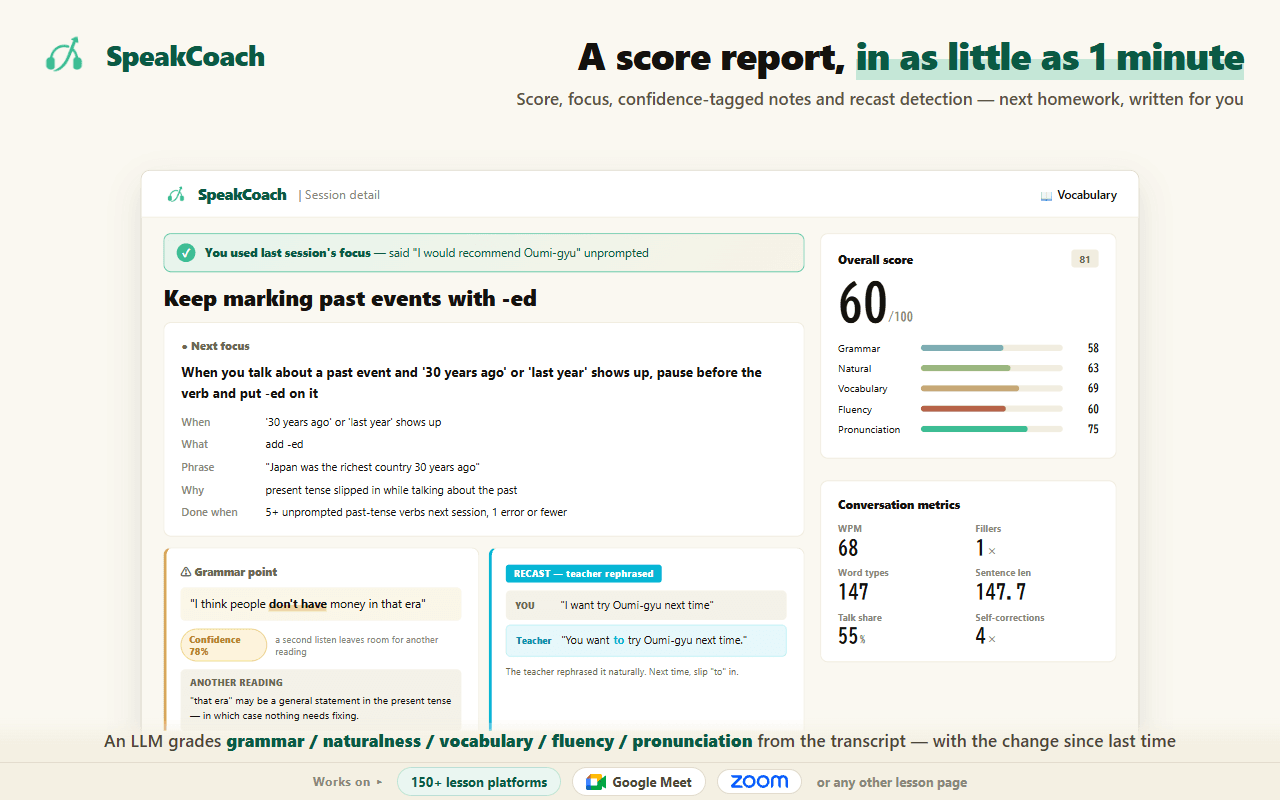
If you want this done for you — SpeakCoach
In short: before you record anything, find out what your service already keeps
On Preply and italki the audio can be kept for you, but only once you have switched it on — and on italki your teacher has to agree as well. Preply writes a transcript with it. On any other service, search the official help for "record" and settle three things: automatic or a switch, audio or video, and how long it stays.
If nothing is kept, your own computer or phone will record it. No extra software, but two things before you start: turn the microphone on, and check the terms to see whether you are allowed to record at all. Some services do prohibit it.
After that, the thing worth changing is how you listen. Do not play all of it. Take the three: where you went quiet, where your teacher rephrased something, where they asked you to say it again. If you recorded video, turn the screen away. One lesson takes a few minutes that way, and you finish with one thing to fix next time.
Sources
Every source below was checked by opening the page itself. Pages change, so we note the date each one was retrieved.
Source: Preply Help Center — Lesson Insights (retrieved 2026-09-11) / italki Help — How do I record my lesson in the italki Classroom? (retrieved 2026-09-11) / Preply User Code of Conduct (retrieved 2026-09-11) / italki Help — Audio recording in italki Classroom (retrieved 2026-09-11) / Preply Terms of Service (updated 25 Nov 2025), section 4 (retrieved 2026-09-11) / italki Terms of Service, section 12 (Restrictions) (retrieved 2026-09-11)
Frequently asked questions
- How do I record an online English lesson?
- First check whether your service is already keeping the audio for you. On Preply, turning on Lesson Insights records the audio and transcribes it; on italki, you and your teacher both agree and then you press record. If nothing is kept, your device will do it: Xbox Game Bar on Windows, screen recording on Mac, Screen Recording in Control Centre on iPhone, screen record in quick settings on Android. None of them needs extra software. Turn the microphone on before you start, or your own voice will be missing.
- My service has no recording feature. What should I do?
- Screen recording on your device is enough. But decide first whether you need the video at all. What you use when reviewing is the moment you got stuck and the way your teacher said it, and both are in the audio. Video is tens of times larger, so a daily lesson fills your phone within a week. Record the screen only when you want the materials or the chat as well, and use audio the rest of the time.
- Do I need my teacher to agree before recording?
- Read the terms before you ask your teacher. Some services prohibit users from recording at all, and there your teacher's permission changes nothing. Where it is allowed, it depends: italki will not record unless the teacher agrees, and where the platform records for you there is nothing to ask. If you are recording it yourself, say that you are recording it to review afterwards, and if they say no, you do not record. Keep it to yourself and you are fine.
- Should I record video or just audio?
- Audio is enough almost every time. What you use when reviewing is the moment you got stuck and the way your teacher said it, and both are in the audio. It is also what the services themselves keep — Preply explicitly does not record your video. Video earns its place only when you want the materials on screen or something typed in the chat. Start with audio: the size difference alone changes whether you keep doing it.
- How long do recordings stay, and how much space do I need?
- It depends on the service. Preply says you can reach your lesson audio for as long as you keep using Preply, and you can download or delete it at any point. italki stores the audio privately but does not state a period, and the video you record yourself sits on your own computer only. If you are recording it yourself, twenty-five minutes of audio is a few tens of megabytes, and the same length of screen recording is tens of times that. Delete the ones you are not keeping on the day.